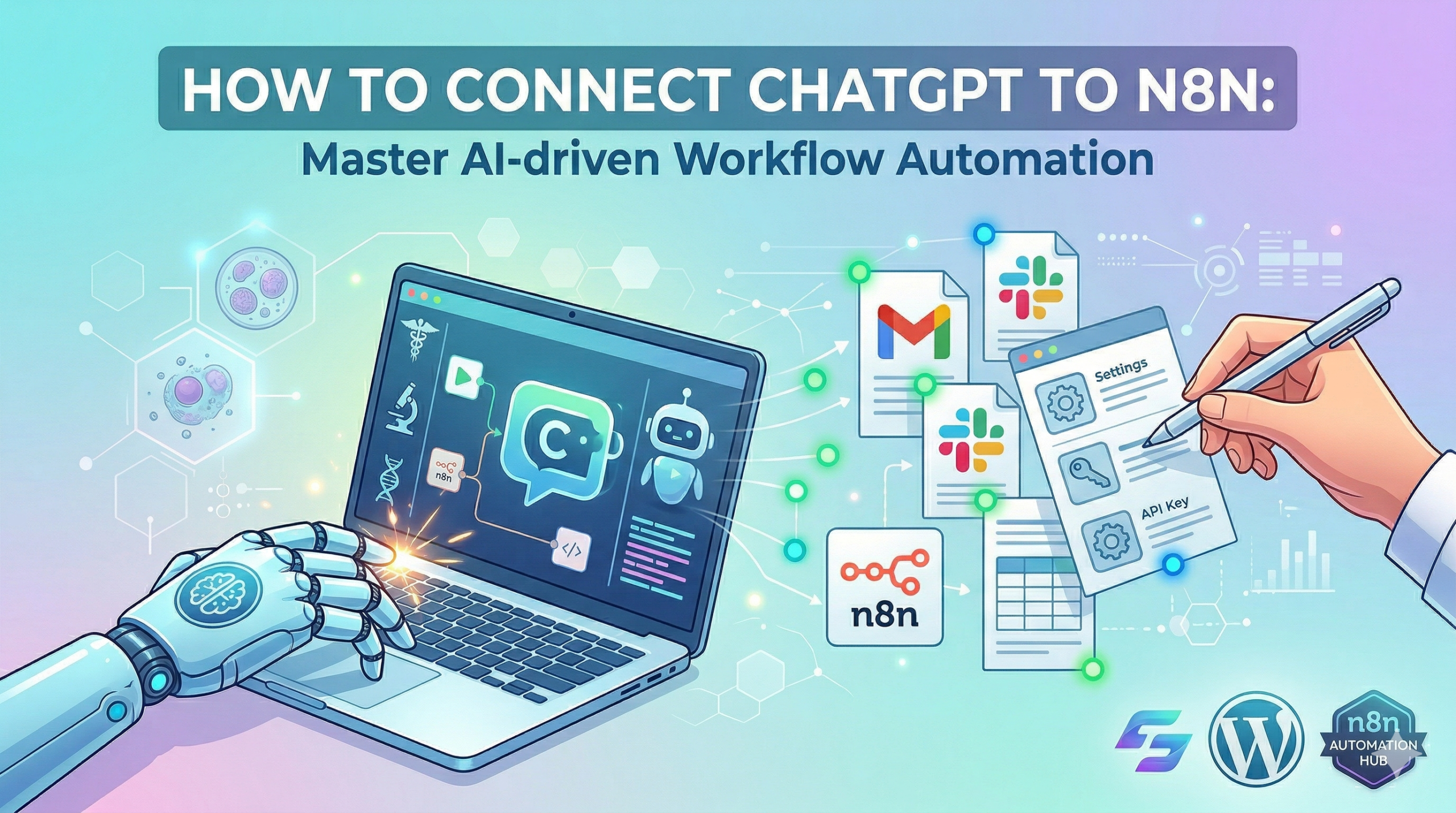
How to Connect ChatGPT to n8n: Build an AI Content Pipeline Step by Step (2026)
AI Tool Clinic Automation Tutorial Automation Guide · Updated March 2026 How to Connect ChatGPT to n8n: Build an AI Content Pipeline Step-by-step guide to integrating ChatGPT with n8n for … Read
📋 Table of Contents
- 1 Introduction: Why Connect ChatGPT to n8n?
- 2 Prerequisites: What You’ll Need
- 3 Step 1: Set Up OpenAI Credentials in n8n
- 4 Step 2: Build Your First ChatGPT Node
- 5 Step 3: Pass Dynamic Data to ChatGPT
- 6 Step 4: Process and Route ChatGPT Output
- 7 Step 5: Build a Complete Content Pipeline
- 8 Step 6: Error Handling & Cost Management
- 9 Step 7: Activate and Monitor
- 10 Real-World Use Cases
- 11 Frequently Asked Questions
📋 Table of Contents
- 1 Introduction: Why Connect ChatGPT to n8n?
- 2 Prerequisites
- 3 Set Up OpenAI Credentials in n8n
- 4 Build Your First ChatGPT Node
- 5 Pass Dynamic Data to ChatGPT
- 6 Process and Route ChatGPT Output
- 7 Build a Complete Content Pipeline
- 8 Error Handling & Cost Management
- 9 Activate and Monitor
- 10 Real-World Use Cases
- 11 FAQ
Introduction: Why Connect ChatGPT to n8n?
If you’re working with ChatGPT, you’ve probably felt the ceiling: manual prompting, copy-paste workflows, and the inability to scale beyond your own keyboard. That’s where n8n comes in. n8n is a workflow automation platform that lets you build complex, multi-step automations—and when connected to ChatGPT, you unlock genuine AI automation at scale.
Imagine generating dozens of blog post drafts in an hour. Or automatically summarizing hundreds of customer emails by sentiment. Or building an intelligent content pipeline that drafts, formats, and publishes content on a schedule. These are exactly what a ChatGPT-n8n pipeline delivers.
By the end of this tutorial, you’ll have a real automation pipeline that uses ChatGPT to generate SEO-optimized blog post drafts from keyword research data, complete with error handling and scheduled execution.
Prerequisites: What You’ll Need

Photo: Ann H / Pexels
Before diving in, make sure you have these four things ready:
n8n Installation
You need n8n running. Use the cloud version (n8n.cloud) for easiest setup, or self-host using Docker. Both work fine for this tutorial. If you’re new to n8n, cloud version requires only email registration—no server setup.
OpenAI API Key
Create an account at platform.openai.com, navigate to API Keys, and generate a new secret key. Store it securely—you’ll need it soon. This requires a payment method on file.
Basic n8n Familiarity
Understand n8n’s basic concepts: nodes (individual actions), connections (data flow), and execution (running the workflow). If you’re brand new, read the n8n beginner guide first.
Sample Data (Optional)
Have a few test prompts or keywords ready. We’ll use a blog keyword as the example, but you can substitute your own use case immediately.
The OpenAI API is different from ChatGPT Plus. You’ll be billed based on token usage, not a monthly subscription. Most basic tests cost less than $0.10. We’ll cover cost management in detail at the end.
Step 1: Set Up OpenAI Credentials in n8n

Photo: Tim Mossholder / Pexels
In n8n, credentials are securely stored API keys that your workflow nodes use to authenticate with external services.
- In your n8n sidebar, click Credentials → Add Credential
- Search for OpenAI and select it
- Paste your OpenAI API key in the API Key field
- Name it something clear like OpenAI Production
- Click Save
n8n encrypts all credentials at rest using AES-256. Even if someone accessed your database, they couldn’t read your API keys without the encryption key. Never share credentials between environments.
Step 2: Build Your First ChatGPT Node

Photo: Miguel Á. Padriñán / Pexels
Let’s start with a simple workflow: a manual trigger that sends a prompt to ChatGPT and returns the response.
Create a New Workflow
Click + New Workflow and name it “ChatGPT Test”. Add a Manual Trigger node as the starting point—this lets you run it on demand during development.
Add the OpenAI Node
Click the + button after the trigger. Search for OpenAI and select it. Set the Resource to Chat and Operation to Message Model.
Configure the Model
Set Model to gpt-4o (or gpt-4o-mini for cost savings). Under Messages, add a User message with a test prompt: “Write a 50-word summary of why automation saves time.”
Connect Your Credential
In the Credential field, select the OpenAI credential you created. Then click Execute Step to test—you should see ChatGPT’s response in the output panel within seconds.
Step 3: Pass Dynamic Data to ChatGPT
Photo: Monstera Production / Pexels
Static prompts have limited use. The real power comes from passing variable data—from a spreadsheet, form, webhook, or previous node—into your ChatGPT prompt dynamically.
Use n8n’s expression syntax to reference previous node data: {{ $json.keyword }}
For example, if a previous node returns {"keyword": "AI automation tools"}, your ChatGPT prompt becomes:
Write a 500-word SEO blog post introduction about: {{ $json.keyword }}

Requirements:
- Include the keyword in the first sentence
- Write for a business audience
- End with a call to action
- Avoid generic filler phrases
Add a System message to set ChatGPT’s persona for all responses in the workflow. Example: “You are a professional medical writer. Always use clear, precise language. Never add unverified citations.” This reduces inconsistent outputs significantly.
Step 4: Process and Route ChatGPT Output

Photo: Polina Zimmerman / Pexels
ChatGPT returns text in $json.message.content. You typically want to route, format, or store this output.
- Save to Google Sheets: Add a Google Sheets node and map
{{ $json.message.content }}to a cell range - Post to Slack: Add a Slack node and use the ChatGPT output as the message text
- Send via Email: Add a Gmail/SMTP node to email the generated content
- Store in Notion: Add a Notion node to create a database entry with the generated text
- Publish to WordPress: Use the WordPress node to create draft posts automatically
Step 5: Build a Complete Content Pipeline

Photo: Andy Lee / Pexels
Let’s put it all together—a full pipeline that reads keywords from Google Sheets, generates blog drafts via ChatGPT, and saves results back to Sheets.
Google Sheets Trigger (or Schedule)
Use a Schedule Trigger to run daily at 9am. Follow it with a Google Sheets node set to Read Rows—reading your keyword queue spreadsheet.
Loop Over Keywords
Add a SplitInBatches node set to batch size 1. This processes each keyword row one at a time, preventing API rate limit issues and making debugging easier.
ChatGPT Content Generation
Add the OpenAI node with your dynamic prompt referencing {{ $json.keyword }}. Set max tokens to 800 for a solid blog intro. Use temperature 0.7 for balanced creativity.
Save Results
Add a Google Sheets node to append the result—mapping the keyword, generated content, timestamp, and token usage to your results sheet. Add an IF node to flag outputs over 600 words for review.
Step 6: Error Handling & Cost Management

Photo: Pavel Danilyuk / Pexels
Error Handling
OpenAI API errors are common: rate limits, token limits, network timeouts. In n8n, right-click any node → Settings → set On Error to Continue (using error output). Add a Slack notification node on the error branch.
Unconstrained loops calling GPT-4o can burn through API credits fast. Always set: (1) max iterations on SplitInBatches, (2) max_tokens per request, (3) a daily budget alert in your OpenAI dashboard. Test with gpt-4o-mini first before using gpt-4o.
API Cost Reference (March 2026)
| Model | Input (per 1M tokens) | Output (per 1M tokens) | Best For |
|---|---|---|---|
| gpt-4o-mini | $0.15 | $0.60 | High-volume, cost-sensitive |
| gpt-4o | $2.50 | $10.00 | Complex reasoning, quality-critical |
| gpt-4o (batch) | $1.25 | $5.00 | Non-time-sensitive bulk jobs (50% off) |
Step 7: Activate and Monitor

Photo: Markus Spiske / Pexels
Once tested, toggle your workflow to Active in the toolbar. It will now run automatically on your schedule. Monitor from the Executions tab—click any run to inspect data flowing through each node, including what was sent to ChatGPT and what came back.
✅ Error handlers on all OpenAI nodes · ✅ Budget alerts in OpenAI dashboard · ✅ Results logged to Google Sheets · ✅ Slack notification on failure · ✅ Max iteration limit on loops
Real-World Use Cases

Photo: Shamia Casiano / Pexels
Content Marketing
Generate blog intros, meta descriptions, and social captions from a keyword list. Save directly to WordPress drafts.
Email Personalization
Pull CRM data, generate personalized email drafts, and send via Gmail—at scale without manual writing.
Support Ticket Triage
Analyze incoming support tickets, classify by intent and urgency, and draft initial responses for agent review.
Report Narratives
Feed weekly metrics data to ChatGPT and generate executive summary narratives automatically every Monday.
Research Summaries
Automatically summarize new academic papers, news articles, or competitor announcements on a daily schedule.
Social Media Content
Transform blog posts into platform-specific social snippets for LinkedIn, Twitter/X, and Instagram—automatically.
Frequently Asked Questions

Photo: Ann H / Pexels
Yes—the n8n OpenAI node makes standard API calls. It’s essentially a visual wrapper around the OpenAI REST API. All the same parameters are available (model, temperature, max_tokens, system message, etc.), and the billing is identical to direct API usage.
Yes! n8n supports Ollama (local), HuggingFace, and any OpenAI-compatible API endpoint via the HTTP Request node. This lets you use models like Llama 3 or Mistral locally—zero API costs after setup. Quality varies compared to GPT-4o, but for structured tasks it’s often sufficient.
Use a chunking strategy: split long documents into sections using a Code node (JS or Python), process each chunk through ChatGPT separately, then merge results. For summarization, use a “map-reduce” approach—summarize each chunk, then ask ChatGPT to summarize the summaries.
Set usage limits in your OpenAI dashboard (monthly hard limit + email alerts at 80% usage). In n8n, log token_usage from each API response to a Google Sheet to track cost per workflow run. The OpenAI node returns usage data in the output.